
Barcodegen for Chrome — the Offline Barcode Extension
Generate barcodes and QR codes right inside your browser — no upload, no account, no network request. Right-click any selected text, link, or page URL, or press Alt+B to open the generator. Everything is computed on your machine.
Add Barcodegen to Chrome or Edge
Free, under 100 KB, and fully offline — the extension declares no host permissions, so the browser itself guarantees it cannot read any website or make network requests.
Your Data Never Leaves the Browser
Most barcode extensions send the text you encode to a server and render the image remotely. Barcodegen ships real encoders with the extension, so the symbol is built on your machine — the same encoders that power the Barcodegen web tools.
- 100% Offline, VerifiablyThe extension requests no host permissions at all — Chrome lists no "read and change your data on websites". With no network access, sending your text anywhere is not just a policy promise; it is technically impossible.
- No Account, No TrackingThere is nothing to sign up for and nothing to configure. Your preferences — default format, error correction level, export size — are stored in your browser only, via Chrome's own storage.
- Encoders You Can VerifyQR Code output matches the reference implementation bit-for-bit, and every linear symbology is checked against an independent decoder. The same quality bar applies whether you use the web tool or the extension.


How to Use the Extension
Three steps from any text to a downloadable barcode.
Install Once
Click the install button on this page, then pin Barcodegen to your toolbar. The whole extension is under 100 KB and needs no additional downloads.
Right-Click or Press Alt+B
Select any text on a page and right-click to generate from the selection, or right-click a link to encode its URL. Alt+B opens the full generator with a blank form.
Copy or Download
Copy the PNG straight to your clipboard for docs and slides, or download a PNG at up to 8× module width for print, or an SVG that scales without limits.
Seven Symbologies, Two Export Formats
The same format catalogue as the Barcodegen web tools — retail barcodes come with the human-readable digits and guard bars laid out to spec.
QR Code
Any text or URL up to about 2,900 characters, with error correction from L to H and automatic mask selection. Decoded independently to verify every symbol.
EAN-13, UPC-A, EAN-8
Retail barcodes with correct GS1 check digits, guard bars that extend below the data area, and grouped human-readable digits placed per the symbology spec.
Code 128
Full ASCII for SKUs, serial numbers, and shipping labels, with automatic code-set switching so the symbol stays as short as possible.
Code 39 and ITF-14
Industrial Code 39 for warehouse and asset labels; ITF-14 with the correct start and stop bars for outer shipping cartons.
PNG and SVG Export
PNG exports render from the same geometry as the SVG, so both always agree. Choose 2× to 8× module width for print-quality PNGs, or take the SVG for unlimited scaling.
Checksum Safety Net
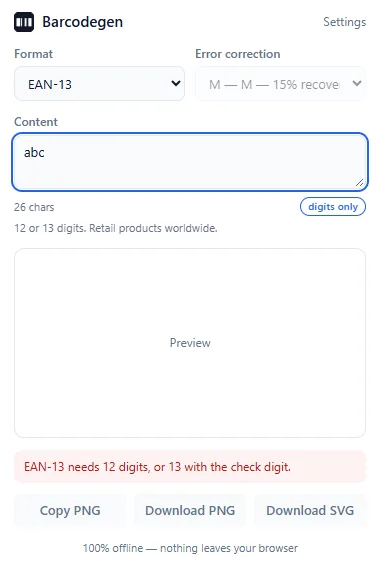
Type a retail number with a wrong check digit and the extension recalculates it and tells you — the note appears above the preview, not silently.
Who Uses It
Anyone who needs a scannable barcode without pasting data into a website.
Retail and Inventory Teams
Look up a GTIN on any web page, right-click, and get a correctly structured EAN-13 or ITF-14 label to print.
Developers and QA
Encode test tickets, URLs, and serials while working — no context switch, and nothing from an internal system is ever uploaded.
Privacy-Conscious Users
Patient IDs, order numbers, internal links — text you would not paste into an unknown website belongs in a generator that cannot phone home.
Teachers and Presenters
Copy a QR code to the clipboard and paste it straight into a slide or handout — one gesture, no file management.
Frequently Asked Questions
Short answers about the Chrome extension.
Install Barcodegen for Chrome or Edge
Free, under 100 KB, and fully offline. Add it once, then right-click any text, link, or page to generate a barcode — or press Alt+B anywhere.